

Advisement via Microsoft Teams
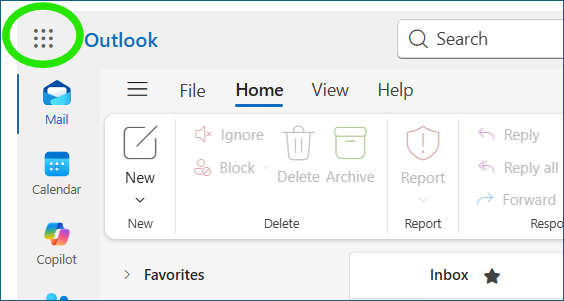
Log in to Teams using your SUNY Canton e-mail address and password, or navigate to Teams using the application menu in the web-based version of SUNY Canton e-mail. The application menu is in the upper left corner (it looks like nine dots in a little square shape).
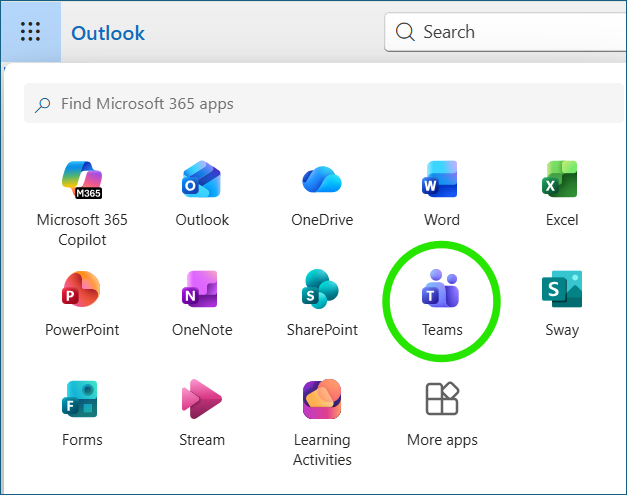
- From your SUNY Canton email in a browser, use the application menu (9 dots in the upper left corner, as pictured below) to open Teams in a new tab.
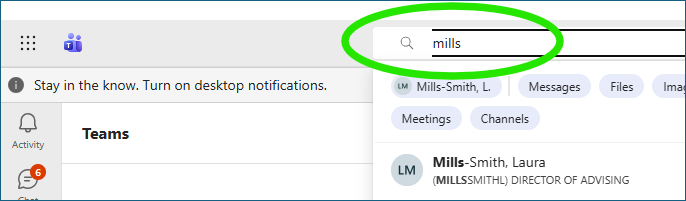
- At the top of the Teams page, use the search box to type the advisor’s email (refer to your meeting confirmation email from Starfish Calendar) and select the person from the drop-down list.
- Type a message in the chat box at the bottom of the page letting them know you are ready to begin the meeting. For example: Good Morning, I am ready for our meeting.
To fully participate in the meeting, you may need to enable your audio and video. The process described above is illustrated in the images below:
Advising & First Year Programs
Miller Campus Center 224
Canton, NY 13617
Mon - Fri. 8:00am - 4:30pm
315-386-7247
Fax: 315-386-7980
advising@canton.edu